

harbor publish for tasks and harbor upload for jobs.
Imported tasks are for browsing and comparing runs; HUD cannot run them. To run Harbor tasks on
HUD, adapt them with the SDK and deploy them.
Prepare the zip
One zip can hold tasks, jobs, or both, at any depth:- A task folder is any folder holding
task.toml.dataset.tomlmanifests are ignored; the task folders inside a dataset folder import like any other. The zip root itself cannot be a task folder: put each task in its own folder. - A job folder holds
config.jsonandresult.jsonand has a folder per trial, each with its ownresult.json. Include the whole job folder; a trial folder on its own is read past with a warning.
Start an import
There are three ways to start an import. All three upload the zip to your team’s Data store and import it into a taskset you can edit, and every import shows up on the taskset’s Imports tab.- Web app
- CLI
- REST API
Select Import from Harbor on the Tasksets page to create a new
taskset, named after the zip unless you rename it. To add to an existing taskset,
select Import in the taskset’s header, or Import from Harbor on its Imports tab.Drop the zip on the dialog, click to choose it, or pick a zip already in Data with
Choose from Data. The dialog estimates how long the import will take before you start it.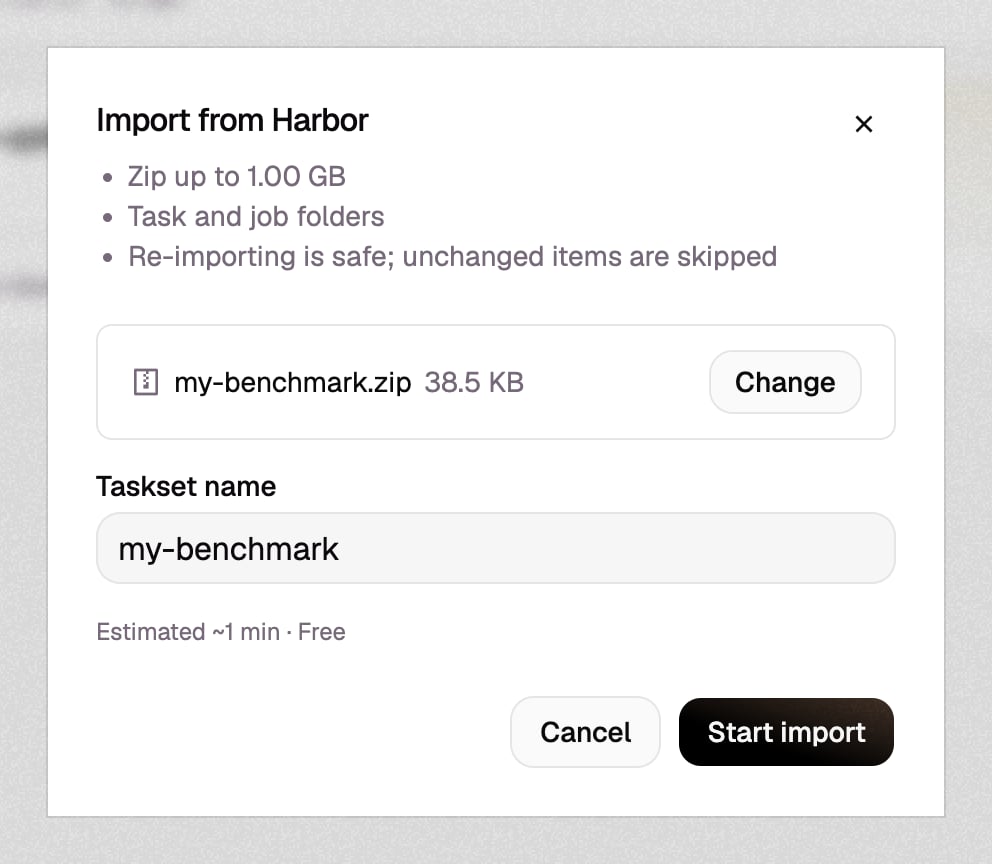
What an import creates
- Tasks. Each task folder becomes an environment named after the folder, created in the taskset’s Project on first import and suffixed when your team already has an environment of that name, and a task of the taskset on that environment. The environment’s version is the folder’s Harbor content digest: importing the same content again changes nothing, and changed content becomes the environment’s next version, which its task moves to in every taskset you can edit.
- Jobs. Each job folder becomes a HUD job, marked with a Harbor badge. Each finished trial
becomes a trace of the task it ran: its
agent/trajectory.json(ATIF) becomes the trace’s steps, and itsresult.jsonand verifier reward become the trace’s outcome. Unfinished trials are skipped. - Links between runs and tasks. A trial links to its task by the task digest in its
lock.json, or, for trials from Harbor versions without trial locks, by thetask_checksumin itsresult.json, matched against the task folders in the same zip. A task the zip does not hold is looked up among Harbor environments already in the taskset’s Project.
Follow an import
An import isqueued, starting, or running while it works, and cancelling after a cancel
request. It ends in one of four statuses:
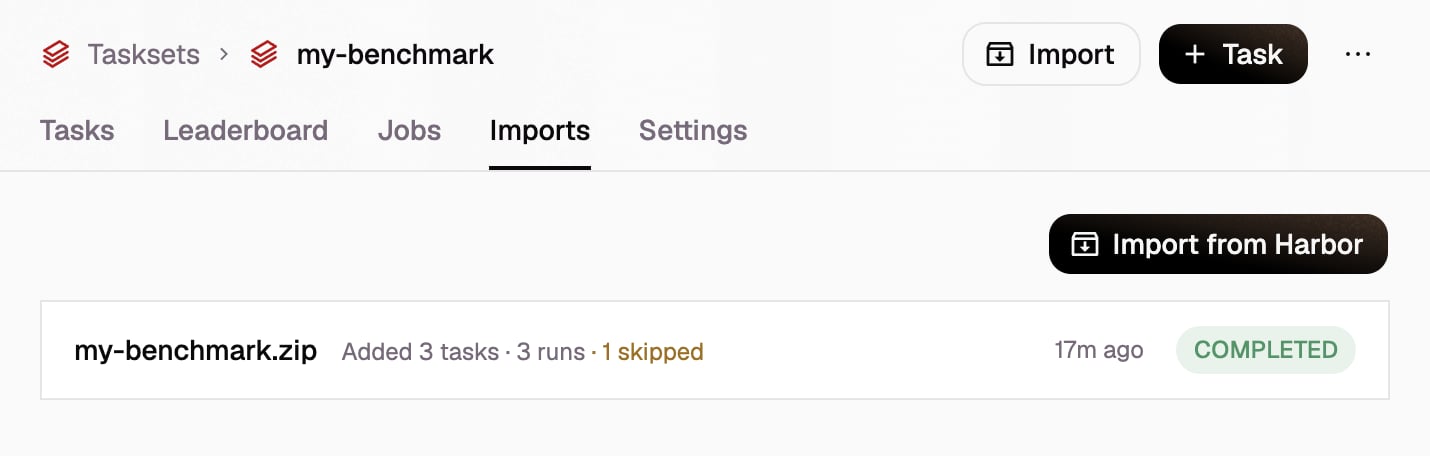
The taskset’s Imports tab lists its imports, newest first, with what each added and how many
items it skipped or failed. Cancel a running import from its row.
Read the report
Open an import to read its report: every task, job, and trial in the zip, with its status and, for anything skipped or failed, the reason. Tasks open the taskset’s task, jobs open the job, and trials open their trace. Download saves the original zip or the report as JSON.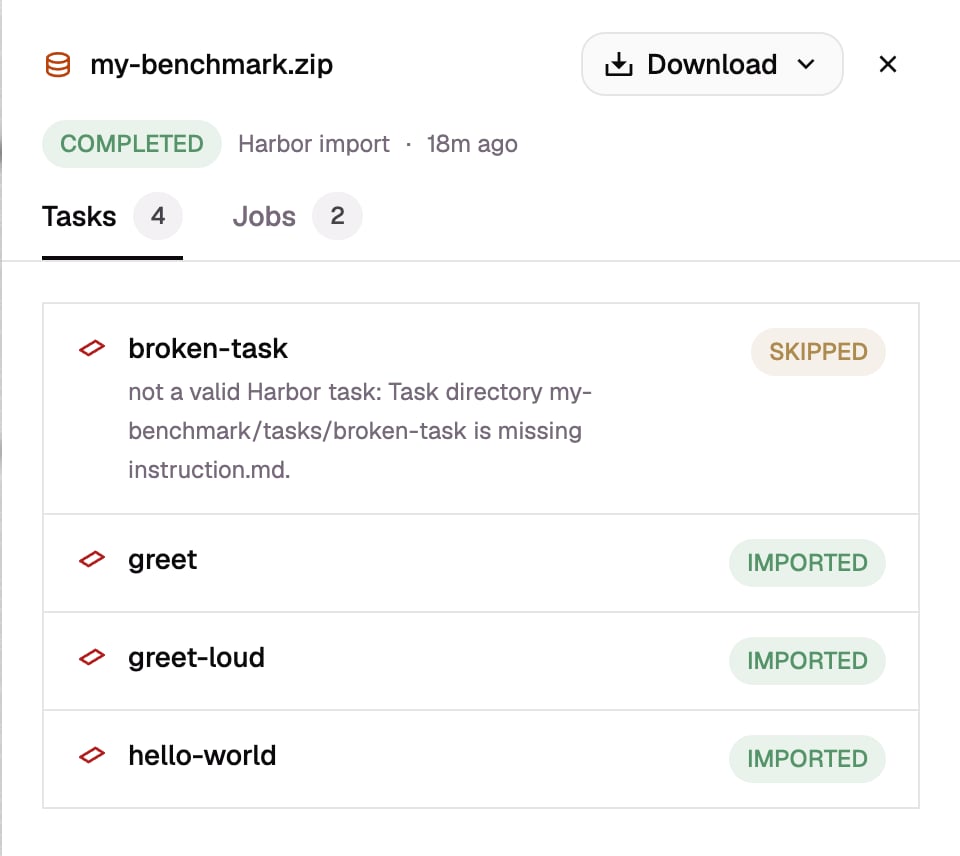
A job’s status follows its trials, unless the job folder itself was skipped or HUD refused the job.
Skipped and failed items do not fail the import.
Import again
Importing the same zip again is safe, and resumes an import that stopped: environments, tasks, jobs, and traces are matched by digest and Harbor id instead of being created twice. To update a task, change its folder and import it again; to add runs, import their job folders into the taskset that holds the tasks.Limits and permissions
- The zip is at most 1 GiB, with at most 200,000 entries and 8 GiB unpacked. Import a larger set in several imports into the same taskset.
- Harbor imports are free.
- You must be able to edit the taskset. Team admins see every import on the team; other members see the imports they started.
- A team holds one Harbor environment per task folder name. A task folder whose environment already exists in another Project fails, and two folders in one zip with the same name but different content stop the import.
- A taskset holds one task per name. A task found in HUD joins the taskset only if the taskset has no task of that name, and a trial of another version of a task links only if the taskset’s task has held that version.
- A trial without
lock.jsonlinks only to a task folder in the same zip.